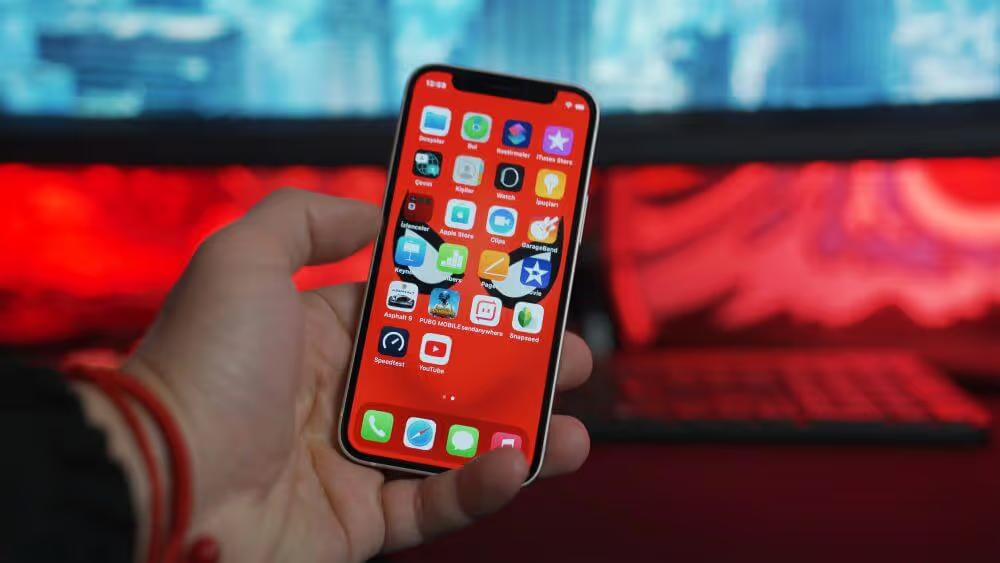
Push notifications are one of the most direct lines you have to your customers. A short message lands on their lock screen, and one tap brings them back to your site.
But you don’t need an app in the App Store to send them. A progressive web app can send push notifications on Android, on desktop and, since iOS 16.4, on iPhone and iPad too. Each platform has its own rules, though, and on iPhone nothing works until someone adds your PWA to their Home Screen.
This guide covers what PWA push needs on iPhone and Android in 2026, the rules for asking permission and each setup step, from the manifest and service worker to VAPID keys and a push provider. It also covers where PWA push falls short of native app push, so you know what to expect from it.
Can a PWA Send Push Notifications?
A PWA can send push notifications to Android phones, desktop computers, iPhones and iPads. What differs is what has to happen first: on Android and desktop, visitors can subscribe straight from the browser, while on iPhone and iPad they have to add your PWA to their Home Screen.
| Device | Where push works | Install needed? |
|---|---|---|
| Android phones and tablets | Chrome, Firefox, Samsung Internet and other Chromium browsers | No |
| iPhone and iPad | Home Screen web apps on iOS and iPadOS 16.4 or later | Yes |
| Mac | Safari 16 or later on macOS Ventura or later, plus Chrome, Edge and Firefox | No |
| Windows, ChromeOS and Linux | Chrome, Edge and Firefox | No |
PWA push notifications are web push notifications, the same kind any site can send from the browser. Being a PWA matters most on iPhone, where only web apps on the Home Screen can receive them.
How Do PWA Push Notifications Work?
PWA push notifications rely on three browser features. The Push API subscribes a browser to your messages, a service worker receives them in the background and the Notifications API shows them on screen.
When someone allows notifications, their browser creates a subscription: an endpoint at the browser’s push service, plus keys to encrypt your messages. Your server stores it. To send a notification, your server encrypts the message, signs the request with your VAPID keys and posts it to that endpoint.
Each browser picks its own push service, such as Apple’s for Safari, and you can’t change it. You don’t need to, because they all accept the same Web Push Protocol, according to web.dev. The push service delivers the message, and the device wakes your service worker to show it.
| Piece | What it does | Where it lives |
|---|---|---|
| HTTPS | Service workers and the Push API only run on secure sites | Your hosting |
| Web app manifest | Sets your PWA's name, icon and how it opens from the Home Screen | A JSON file linked from every page |
| Service worker | Receives push messages in the background and shows the notification | A JavaScript file at your site's root |
| VAPID keys | Prove that messages come from your server | Public key in your site's code, private key on your server |
| Push subscription | The endpoint and keys for one browser on one device | Your database or your push provider |
| Push service | Delivers each message to the device | Run for each browser, such as Apple's push service for Safari |
A subscription belongs to one browser on one device. Someone who subscribes on their phone and their laptop has two subscriptions, and clearing their browser data or switching phones ends one.
What Do You Need for PWA Push Notifications on iPhone?
PWA push notifications on iPhone and iPad need iOS or iPadOS 16.4 or later, and they only work in a web app that someone has added to their Home Screen. A visitor browsing your site in a Safari tab can’t subscribe.
For an iPhone user to get your notifications, all of these have to be true:
- Their iPhone or iPad runs iOS or iPadOS 16.4 or later.
- They’ve added your PWA to their Home Screen and opened it from the icon.
- On iOS 16.4 to 18, your manifest’s
displayvalue isstandaloneorfullscreen. - They tapped a button in your web app that asked for permission, then tapped Allow.
- Every push you send shows a notification.
Once someone allows them, your notifications work exactly like notifications from other apps, according to WebKit. They show on the Lock Screen, in Notification Center and on a paired Apple Watch, and people manage them in Settings like any app’s. Your PWA can also show a badge count on its icon with the Badging API.
How Do People Add a PWA to the Home Screen on iPhone?
People add a PWA to the Home Screen on iPhone through the Share menu: they open your site, tap Share, choose Add to Home Screen and tap Add. Safari offers this, and so do other iPhone browsers such as Chrome, but none of them lets your site trigger it with an install button or prompt.
Since iOS 26, every site added to the Home Screen opens as a web app by default, with an Open as Web App switch people can turn off, according to WebKit. On older versions, the manifest’s display value decides it.
Because Safari won’t prompt people for you, show iPhone visitors the steps yourself, ideally with a reason to follow them, like order updates or restock alerts. Inside the installed web app, window.matchMedia('(display-mode: standalone)').matches returns true, so you can swap the instructions for your notifications button there.
Every extra step loses some people, so expect fewer subscribers on iPhone than on Android. Our guide to PWAs on iOS covers what else they can and can’t do there.
What Is Declarative Web Push?
Declarative Web Push is a newer way to send web push in Safari, where the message itself describes the notification and Safari shows it without running a service worker. Apple added it for Home Screen web apps in iOS and iPadOS 18.4 (March 2025) and for the Mac in Safari 18.5 (May 2025).
The message is standard JSON with a web_push value of 8030 and a notification object. The notification needs at least a title and a navigate URL, the page that opens when someone taps it:
{
  "web_push": 8030,
  "notification": {
    "title": "Back in stock",
    "body": "The jacket you saved is back in your size.",
    "navigate": "https://example.com/products/jacket"
  }
}
Sites subscribe through window.pushManager instead of a service worker. If a service worker is installed, it still receives the push and can change the notification, and Safari shows the original if the script fails, according to WebKit.
Chrome, Edge and Firefox don’t support Declarative Web Push as of October 2026, so keep your service worker. Sending every message in this format still makes sense: Safari can show it directly, and your service worker can read the same fields in every other browser.
What Do You Need for PWA Push Notifications on Android?
PWA push notifications on Android need much less than on iPhone: a site served over HTTPS, a service worker and a visitor who allows notifications. Chrome, Firefox, Samsung Internet and other Chromium browsers support the Push API, so people can subscribe from a normal browser tab without installing anything.
Notifications arrive even when the browser is closed, because Android wakes the browser when a message comes in, according to web.dev’s push FAQ.
Installing your PWA still helps. Since October 2025, Chrome on Android and desktop removes notification permission from sites that send a lot and get very little engagement, but it doesn’t revoke it for installed web apps, according to Google.
The gap on Android is web pages shown inside other apps. Android’s WebView, which apps use to display web pages, doesn’t support the Push API, so visitors who open your site inside another app can’t subscribe until they open it in their browser.
When Can You Ask for Notification Permission?
The best time to ask for notification permission is right after a visitor taps or clicks something on your site, at a moment when notifications are clearly useful. Safari and Firefox only show the prompt in response to a user gesture, and Chrome shows a quieter prompt on sites that most people decline.
| Browser | Needs a tap or click first? | What else to know |
|---|---|---|
| Safari on iPhone and iPad | Yes | Only inside a web app opened from the Home Screen |
| Safari on Mac | Yes | Call the subscribe method straight from the click handler, as Apple asks |
| Firefox | Yes, since Firefox 72 (January 2020) | Without a click, it shows a small icon in the address bar instead of the prompt |
| Chrome | No | Shows a quieter prompt for sites with very low opt-in rates, and removes permission from sites that send a lot and get little engagement |
The prompt is also a one-time chance. If a visitor blocks it, your site can’t ask again, and they’d have to change it in their browser settings, according to web.dev.
That’s why the worst time to ask is the moment someone lands on your site, before they know what you’d send. Google recommends showing your own message first, explaining what notifications are for, and only triggering the browser’s prompt when someone taps Yes.
Good moments to ask include:
- After someone places an order, so you can send shipping updates
- When they save a product, so you can tell them about price drops or restocks
- When they follow a topic, team or author on a content site
- When they turn on alerts in their account settings
How to Set Up Push Notifications for Your PWA
Setting up push for your PWA takes six steps. A provider like OneSignal gives you its own SDK and service worker for most of them, but the steps and the rules stay the same.
1. Add a Web App Manifest
Your web app manifest tells phones what to call your PWA, which icon to use and how to open it from the Home Screen. On iPhones with iOS 16.4 to 18, push only works when display is set to standalone or fullscreen:
{
  "name": "Your Store",
  "short_name": "Store",
  "start_url": "/",
  "display": "standalone",
  "icons": [
    { "src": "/icons/icon-192.png", "sizes": "192x192", "type": "image/png" },
    { "src": "/icons/icon-512.png", "sizes": "512x512", "type": "image/png" }
  ]
}
Link it from the <head> of every page with <link rel="manifest" href="/manifest.json">. Serve your whole site over HTTPS, and check the manifest in the Manifest tab of the Application panel in Chrome DevTools.
2. Register a Service Worker
A service worker is the script that receives push messages when your site isn’t open. Put it at the root of your site, so it covers every page, and register it from your pages:
if ('serviceWorker' in navigator) {
  navigator.serviceWorker.register('/sw.js');
}
If your PWA already has a service worker for caching, add the push code to it rather than registering a second one. Providers like OneSignal explain how to merge their service worker with yours.
3. Generate VAPID Keys
VAPID keys are a key pair that identifies your server to the browsers’ push services. You create them once: the public key goes in your site’s code, and the private key stays secret on your server.
The open-source web-push library for Node.js generates them with one command:
npx web-push generate-vapid-keysChrome and Safari expect a VAPID key with every subscription, and Firefox accepts one. You don’t need an Apple Developer account to send web push to Safari, according to Apple.
4. Ask for Permission and Save the Subscription
Ask for permission from a button people tap, and subscribe them in the same click handler. Calling pushManager.subscribe() shows the browser’s permission prompt if it’s needed, and Apple asks for the call to come straight from the tap:
const VAPID_PUBLIC_KEY = 'your-public-key';

document.querySelector('#turn-on-alerts').addEventListener('click', async () => {
  const registration = await navigator.serviceWorker.ready;
  const subscription = await registration.pushManager.subscribe({
    userVisibleOnly: true,
    applicationServerKey: VAPID_PUBLIC_KEY,
  });

  await fetch('/api/push-subscriptions', {
    method: 'POST',
    headers: { 'Content-Type': 'application/json' },
    body: JSON.stringify(subscription),
  });
});
userVisibleOnly: true is your promise to show a notification for every push, with no silent messages. Chrome won’t create a subscription without it, and Safari revokes permission from sites that break it.
The fetch call sends the subscription to your server. Store it with the customer’s account if they have one, since one person can have a subscription on every browser and device they use.
5. Show Notifications from Your Service Worker
Your service worker listens for push events and turns each one into a notification. This version reads the Declarative Web Push format from earlier, so the same message works in every browser:
// sw.js
self.addEventListener('push', (event) => {
  const { notification } = event.data.json();

  event.waitUntil(
    self.registration.showNotification(notification.title, {
      body: notification.body,
      icon: '/icons/icon-192.png',
      data: { url: notification.navigate },
    })
  );
});

self.addEventListener('notificationclick', (event) => {
  event.notification.close();
  event.waitUntil(clients.openWindow(event.notification.data.url));
});
event.waitUntil() keeps the service worker running until the notification is on screen. The second listener opens the right page when someone taps the notification.
6. Send and Test Your First Notification
To send a notification, your server encrypts the message and posts it to each subscription’s endpoint, signed with your private key. The web-push library does all of this, and the same project has libraries for PHP, Python, Java and C#:
import webpush from 'web-push';

webpush.setVapidDetails(
  'mailto:you@yourdomain.com',
  process.env.VAPID_PUBLIC_KEY,
  process.env.VAPID_PRIVATE_KEY
);

await webpush.sendNotification(subscription, JSON.stringify({
  web_push: 8030,
  notification: {
    title: 'Back in stock',
    body: 'The jacket you saved is back in your size.',
    navigate: 'https://example.com/products/jacket',
  },
}));
Keep each message small, since Apple’s push service rejects anything over 4 KB, and set a time to live, so messages for phones that are off expire when they stop being useful. When a push service reports that a subscription has expired (HTTP 410), delete it.
Then test on real devices. Subscribe on an Android phone in Chrome and on an iPhone with your PWA added to the Home Screen, send a test to each and check that the prompt only appears after a tap, the notification arrives and tapping it opens the right page.
Should You Use a Push Provider Like OneSignal?
A push provider is the faster route for most businesses, because it handles subscriptions, prompts, sending and reporting for you. Building on the web-push library is the better choice when you want full control and have developers to look after it.
| Option | What it handles | Cost | Best for |
|---|---|---|---|
| OneSignal | Its own SDK and service worker, permission prompts, segments, scheduling and automated messages, including iPhone setup | Free for web push up to 10,000 subscribers per send; paid plans from $19 a month plus $0.004 per web push subscriber | Marketing teams that want a dashboard without building a backend |
| Firebase Cloud Messaging | A JavaScript SDK, its own service worker file and VAPID keys in the Firebase console; you send through its API | No cost | Developers whose product already runs on Firebase |
| web-push (open source) | Encryption, VAPID signing and sending from your own server | Free; you run the server | Developers who want full control over their data and sending |
OneSignal is a strong fit when your marketing team wants to segment, schedule and automate messages without asking developers each time. Its guide to web push for iOS walks through the Home Screen setup step by step.
Firebase Cloud Messaging costs nothing and suits teams already on Firebase, with your developers sending messages from your own server. Whichever you choose, the platform rules still apply, from the Home Screen step on iPhone to the tap before the prompt.
How Does PWA Push Compare with Native App Push?
PWA push and native app push both put your message on the lock screen, but they reach different people. On iPhone, PWA push only reaches people who’ve added your PWA to their Home Screen, while a native app can ask everyone who downloads it.
| PWA push | Native app push | |
|---|---|---|
| What sends it | Your site, through each browser's push service | Your iOS and Android app, through Apple's and Google's push services |
| iPhone | Only people who add your PWA to the Home Screen (iOS 16.4 or later) | Everyone who installs your app and allows notifications |
| Android and desktop | Any visitor in a supported browser, with no install | Android phones, for people who install your app; no desktop |
| Images and buttons | In Chrome and Edge, not in Safari | On iPhone and Android |
| Background updates | Not allowed: every push must show a notification | Supported on iPhone and Android |
| App store listing | None on the App Store | The App Store and Google Play |
PWA push is ideal for news sites, SaaS tools and stores with many desktop or Android visitors, where people can subscribe from the browser with one tap. Compared with an app, it’s quick to set up and costs little to run.
Native app push is best suited to brands whose repeat customers shop on iPhone, because that’s where PWA push reaches the fewest people. Our guide to web push vs native app push compares opt-in rates, features, cost and results in detail.
Sending Native Push Notifications with MobiLoud
MobiLoud transforms your website into a custom native app, powered by the same underlying code as your website. Your PWA keeps reaching people in the browser, and your app reaches every iPhone and Android customer who downloads it, with no Home Screen step.
We build the app from your existing site, building a custom native experience around it for the phone. That means native navigation, screens designed for the app, app-only pages your team builds in your own platform and native features where you need them.
Push notifications are built in. Your app comes with OneSignal or Klaviyo set up, so your team can segment, schedule and automate messages, and a welcome screen asks customers for permission at the right moment.
That pays off quickly. In the first 30 days after GSF Car Parts launched its app, it had 19,000 active app users and 12,000 push subscribers, before the team had really started promoting it.
"Because we're using an app, we have the ability to leverage native device features and capabilities that are not available to a web browser."
Our team builds, launches and looks after your app, so there’s nothing for your team to maintain. We’ve helped brands like John Varvatos, Jack & Jones and Tadashi Shoji launch their apps this way, and most brands go live in 2 to 4 weeks.
Final Thoughts
Push notifications are one of the best reasons to build a PWA. On Android and desktop, anyone can subscribe from the browser with a tap, and on iPhone, your notifications sit alongside every other app’s once someone adds your PWA to their Home Screen.
Getting there is mostly a matter of following the rules: a manifest and a service worker, VAPID keys, a permission request that follows a tap and a notification for every push. Send every message in the Declarative Web Push format, and the same message works in Safari’s newest push system and, through your service worker, in every other browser.
What PWA push can’t do is reach the iPhone customers who never add your site to their Home Screen. For those customers, a native app is what puts your brand on their lock screen.