Your team has tapped through your app hundreds of times. They know where every button is and which screens to avoid, which makes them the worst people to judge whether it makes sense.
The people who will judge it are your customers, on their own phones, the first time they open it. If it confuses them or crashes, they’ll delete it and leave a review that sticks around long after you’ve fixed the problem.
TestFlight is how you find those problems first. This guide covers how to set it up step by step, the difference between internal and external testers and what to check before you submit your app to the App Store.
What Is TestFlight?
TestFlight is Apple’s free tool for beta testing apps before they’re released on the App Store. It works for iPhone and iPad apps, and for Mac, Apple TV, Apple Watch and Apple Vision Pro apps.
Testers install the free TestFlight app, accept your invitation and install your test build on their own device. That means you’re testing on real phones in real conditions, not just in a simulator on a developer’s computer.
To use it, you need a membership in the Apple Developer Program, which costs $99 a year and also covers publishing on the App Store.
How to Use TestFlight
To beta test an iOS app with TestFlight, you upload a build to App Store Connect, tell testers what to look at and invite them. Here’s the whole process.
- Set up your app in App Store Connect. You’ll need your Apple Developer Program account and an app record for the app you’re testing.
- Upload a build. Archive the app in Xcode and upload it to App Store Connect, or use Apple’s Transporter app. It appears in the TestFlight tab once Apple has processed it.
- Add test information. Write a short description of the beta, what you’d like testers to focus on and the email address where feedback should go.
- Create a tester group and add the build. Make an internal group for your team, an external group for everyone else, or both.
- Invite testers. Internal testers get an email. External testers can be invited by email or through a public link, once the build has passed beta app review.
- Testers install TestFlight. They accept the invitation in the TestFlight app, install your build and start using it like any other app.
- Read the feedback and fix what comes up. Upload the next build to the same group, and testers get it as an update in TestFlight.
Each build can be tested for 90 days. After that it expires, and testers need a newer build to keep going.
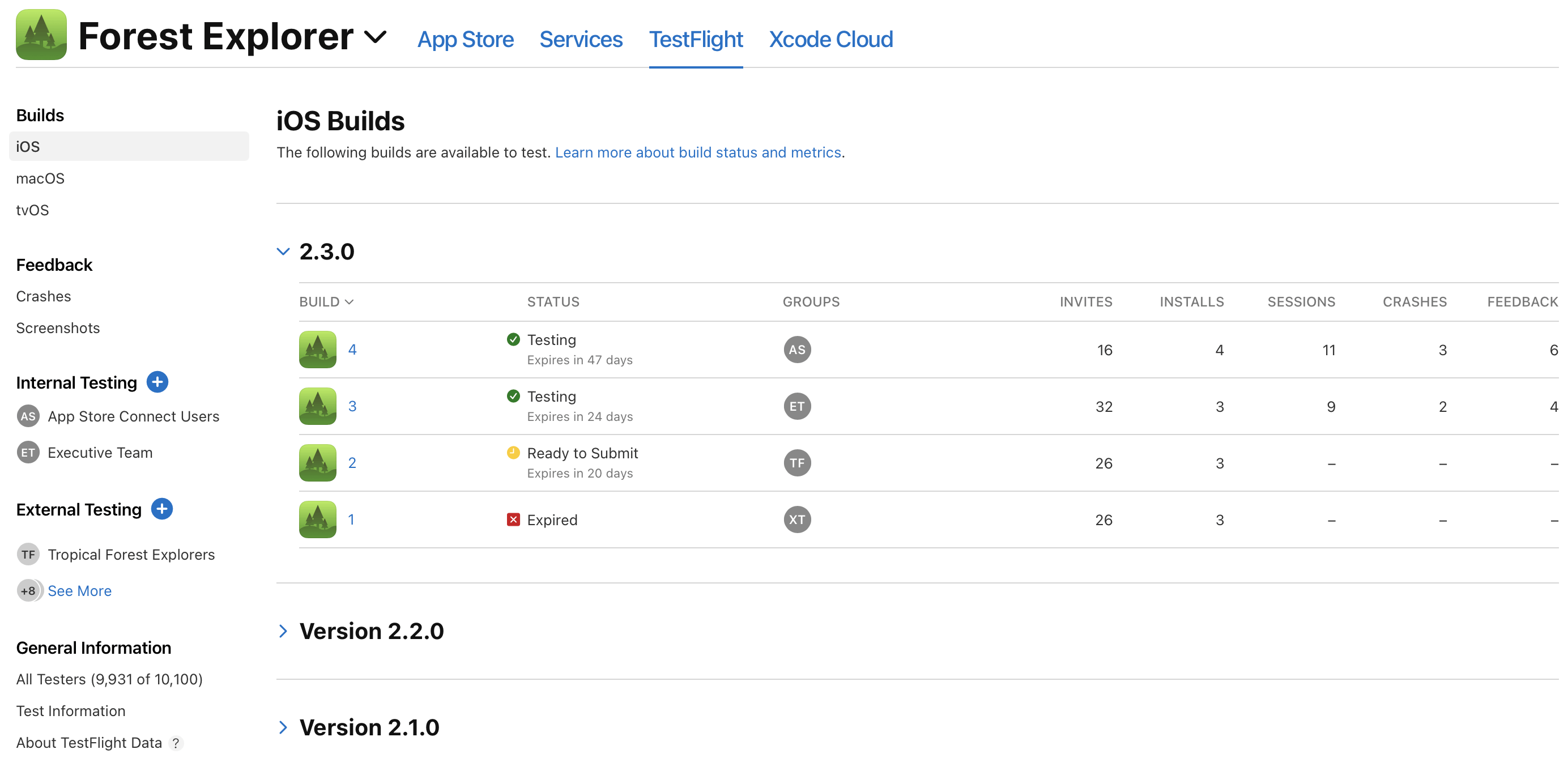
In App Store Connect, you can see every test build along with:
- How many testers you’ve invited
- How many have installed it
- The number of sessions
- The number of crashes
- The feedback testers have sent
Internal vs External Testers
TestFlight has two kinds of testers. Internal testers are people on your App Store Connect team, and external testers are anyone else you invite.
| Internal testers | External testers | |
|---|---|---|
| Who they are | Members of your App Store Connect team | Anyone outside your team |
| How many | Up to 100 | Up to 10,000 |
| How they join | Email invitation | Email invitation or a public link |
| Beta app review | Not needed | Needed for the first build of each version |
| Best suited to | Developers, QA and colleagues checking every build | Customers, beta communities and people who've never seen the app |
Inviting Internal Testers
Internal testers are App Store Connect users with access to your app, so you add them to your team first. Here’s how to add people to your App Store Connect account.
Internal testing is best suited to your own team: developers and QA, plus people like the app manager, marketing and sales who should see the app before release. You can add up to 100 internal testers, and they can test every build for 90 days.
Inviting External Testers
External testers don’t need to be part of your App Store Connect account. You invite them, they download the TestFlight app and they give feedback on your beta build.
Before external testers can install anything, the first build of each version goes through Apple’s beta app review. Later builds of the same version might not need a full review.
You can invite up to 10,000 external testers in two ways:
- By email. You add each person’s email address, and you’ll see who installed the build and how often they use it.
- With a public link. Anyone with the link can join. You can open it to anyone, or filter it by device and iOS version, and set a tester limit between 1 and 10,000. You can turn the link off at any time.
TestFlight Redeem Code
TestFlight may ask a tester for a redeem code to access your build. The code comes in the invitation email, along with a link to step-by-step instructions for getting TestFlight and joining the beta.
In the TestFlight app, testers tap Redeem in the top right corner and enter the code. Each code is unique and works once.
If a tester didn’t receive a code, ask them to check their spam folder for the invitation, then open the email and follow the link inside. If that doesn’t work, send the invitation again.
Viewing Feedback from Beta Testers
Beta testers can send feedback from the TestFlight app, or by taking a screenshot inside your beta app, which opens a feedback form with the screenshot attached. This works in TestFlight 2.3 or later on iOS, macOS and visionOS.
You’ll find their feedback in App Store Connect, alongside sessions and crash data for each build. Testers on Apple TV, or on older versions of TestFlight, send feedback to the email address you added in your test information.
What to Test Before You Submit to the App Store
Before you submit an iOS app for review, test the things Apple’s reviewers and your first customers will notice. Some of these are also among the most common reasons Apple rejects apps.
- Every main journey, start to finish. Sign up, sign in, search, buy and sign out again, on a fresh install.
- Older iPhones and iOS versions. Test on the oldest iOS version you support, not just the newest phone on your desk.
- Permission prompts. Check what happens when someone allows notifications, location or the camera, and when they tap Don’t Allow.
- Weak connections. Switch to mobile data, or turn on Airplane Mode halfway through checkout, and see how the app recovers.
- Dark Mode and larger text. Both change how screens lay out, and both are common settings.
- Fresh eyes. Include testers who’ve never seen the app. Your team knows how it’s supposed to work, and your customers won’t.
Your app doesn’t need to be perfect before launch, because you’ll learn a lot from real users. But it should feel like a complete, professional app from the first session, since early bad reviews are hard to shake off.
How MobiLoud Customers Test Their Apps
If MobiLoud is building your app, you’ll test it through TestFlight too. Before we submit your app to the stores, we send you a test version for iOS and Android, so you can check it on your own phones.
We run the first round of checks on our side. You know your website better than anyone, so you make sure its features work in the app, and tell us about anything that needs fixing.
Final Thoughts
TestFlight is the standard way to beta test an iPhone app, and it comes free with your Apple developer membership. Use internal testers for every build and external testers for the fresh perspective your team can’t give you.
Building for Android too? TestFlight only covers Apple devices, but Google Play has its own testing tracks, covered in our guide to TestFlight alternatives for Android.
Take the time to test on real devices, with people who don’t know the app, and you’ll have a much better chance of getting traction once you land in the App Store.